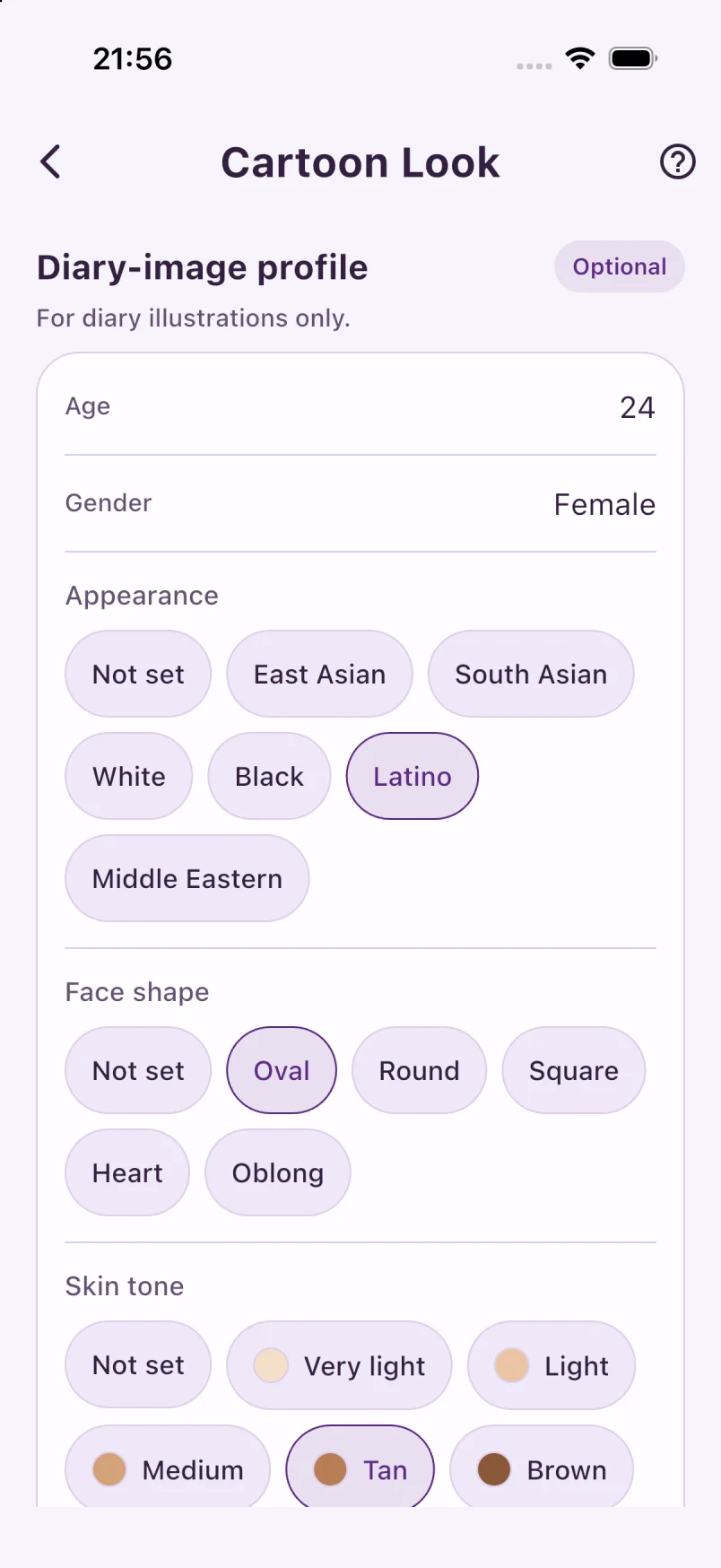
1. Write your own moment
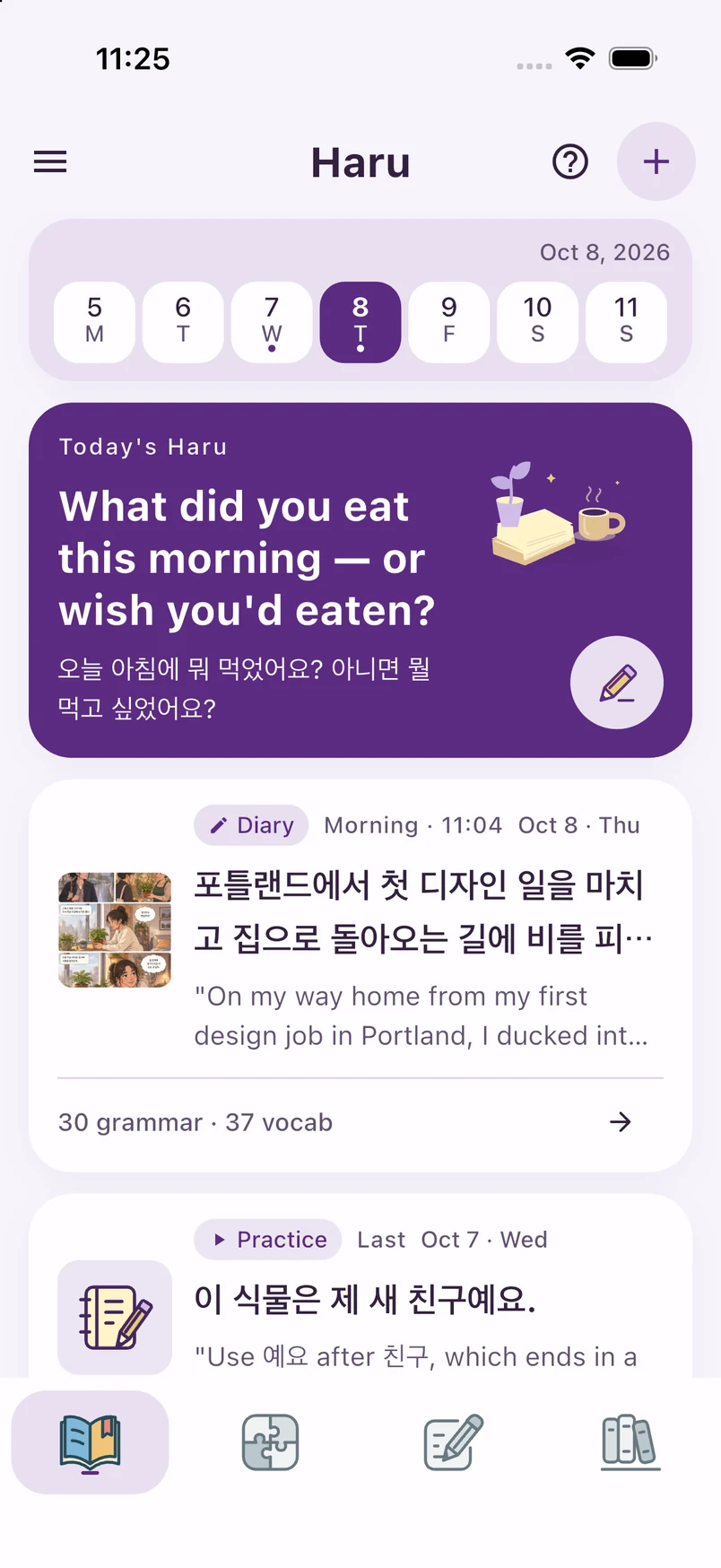
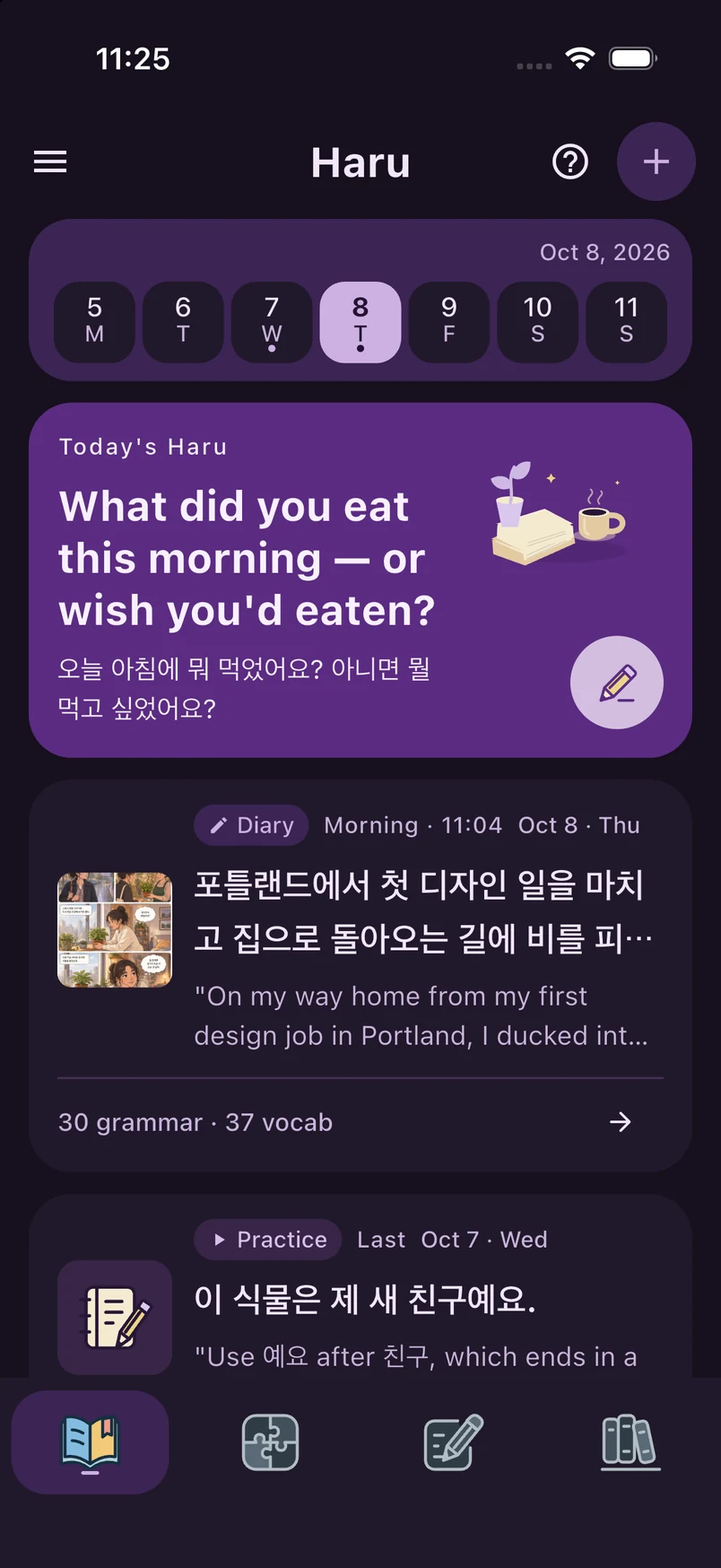
In Haru, tap the plus button or the writing button on Today’s Haru. Write or speak your diary, then tap Create Lesson.
Features
Scroll through all six features, or return to the cards to choose a starting point.
01 · Haru
Write your own day. Learn Korean from the Story it becomes.
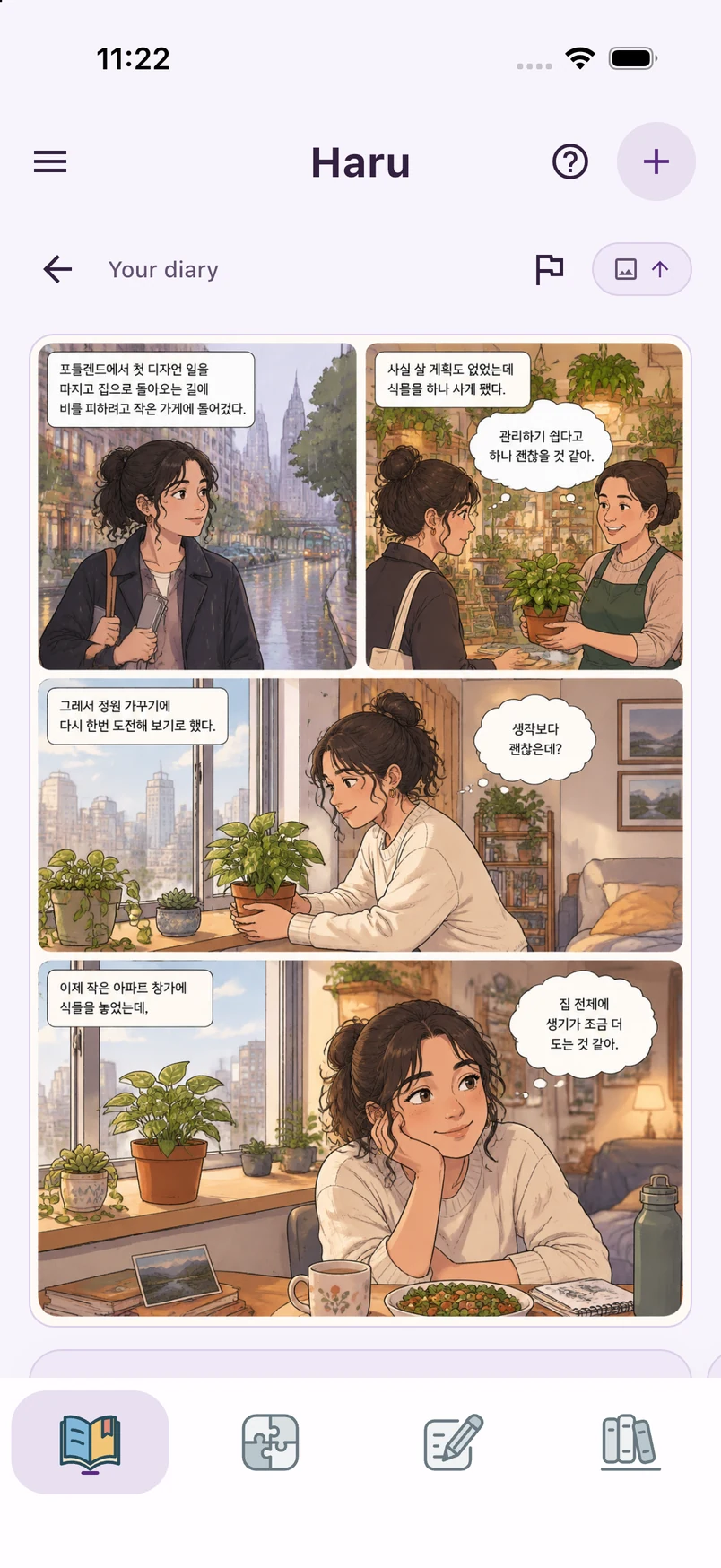
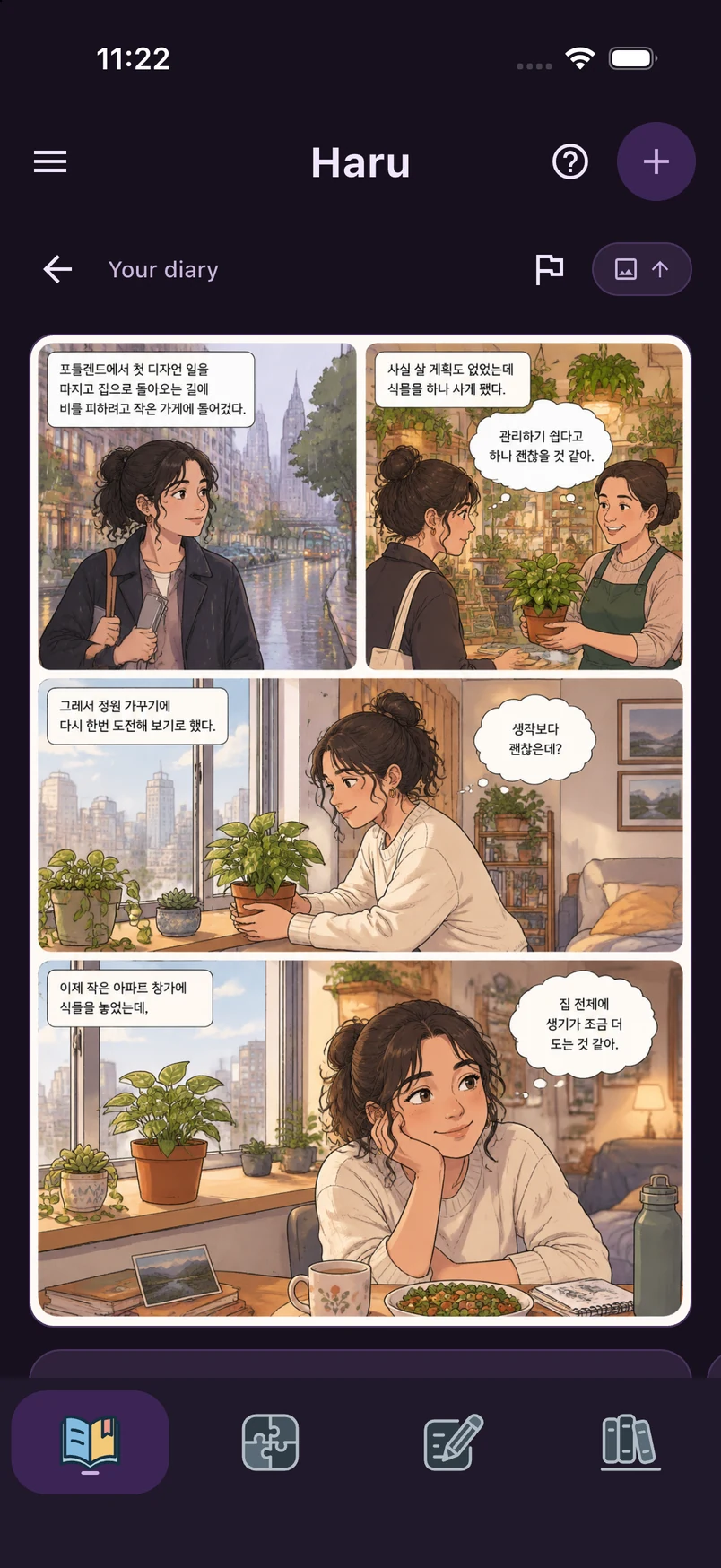
In Haru, tap the plus button or the writing button on Today’s Haru. Write or speak your diary, then tap Create Lesson.
Read the Korean beside your original words and swipe between sentences. Listen with the play icon, explore grammar, words and phrases, and reopen previous diaries from Haru or Library → Calendar.
Press and hold the Korean text, adjust the selection handles, then choose Ask or Explain. Your question keeps the original sentence as context.
See how to select an expression →Ask in context
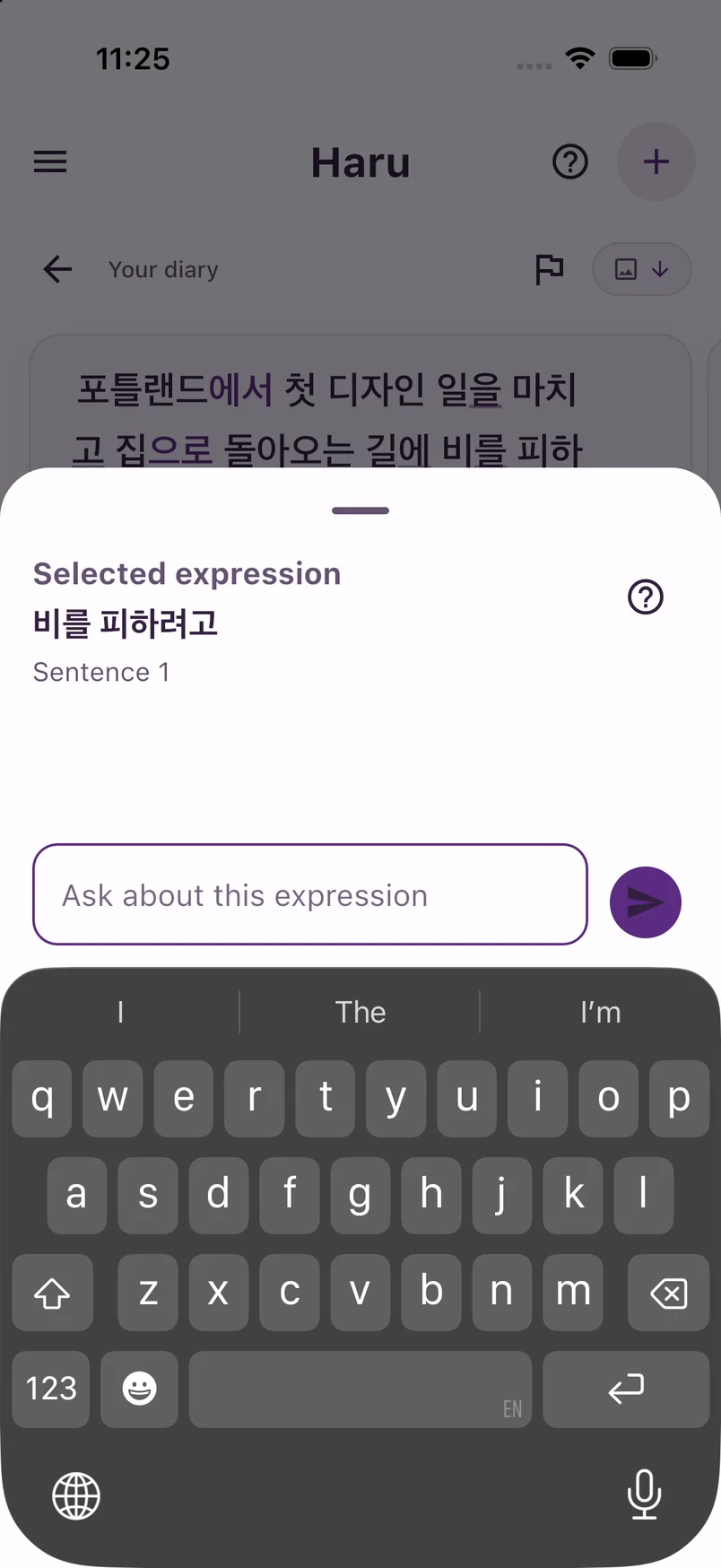
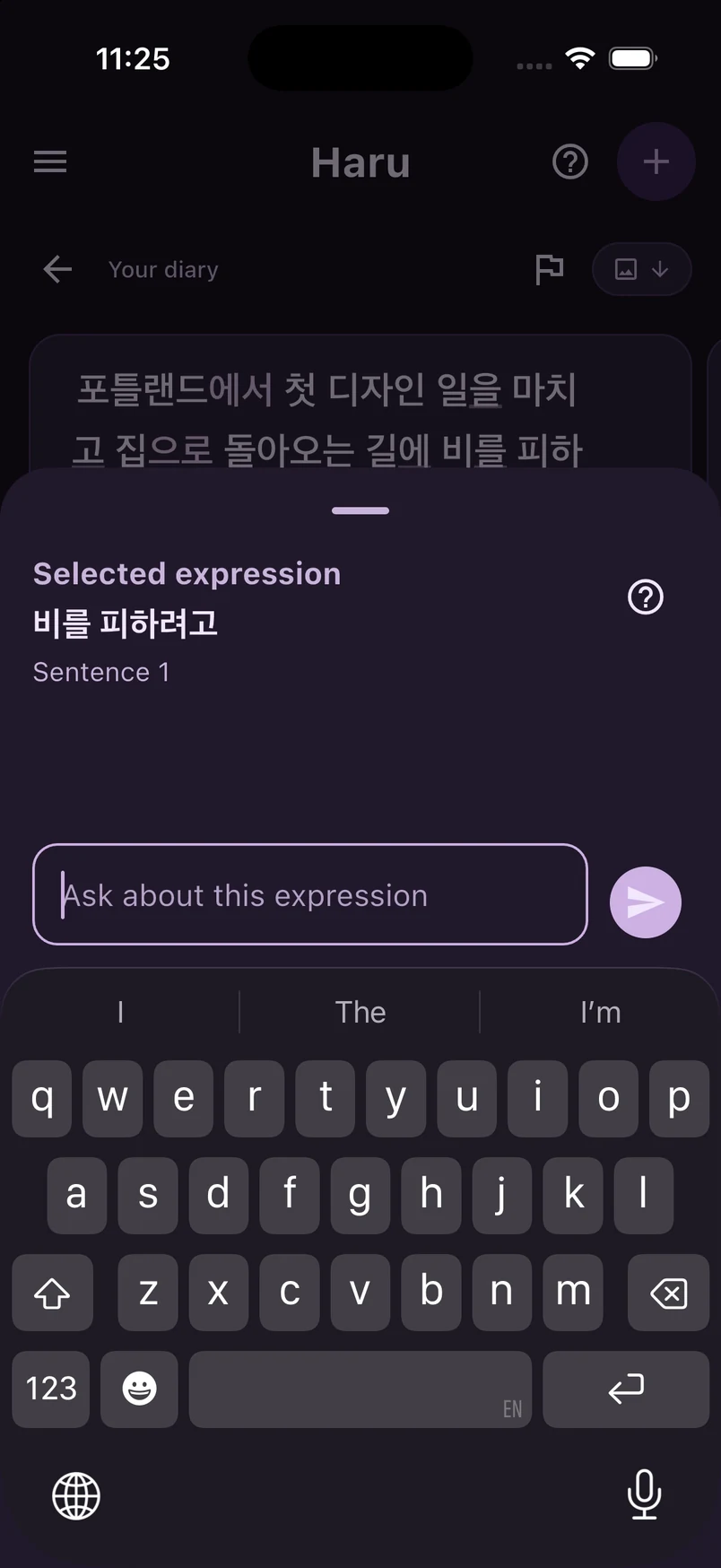
Open a Story, press and hold its Korean text, and adjust the selection handles. Choose Ask or Explain to ask about that expression with the original sentence as context.
You do not need to understand everything at once. Start with the expression you want to use.
02 · Build
Turn your own diary into a small learning moment.
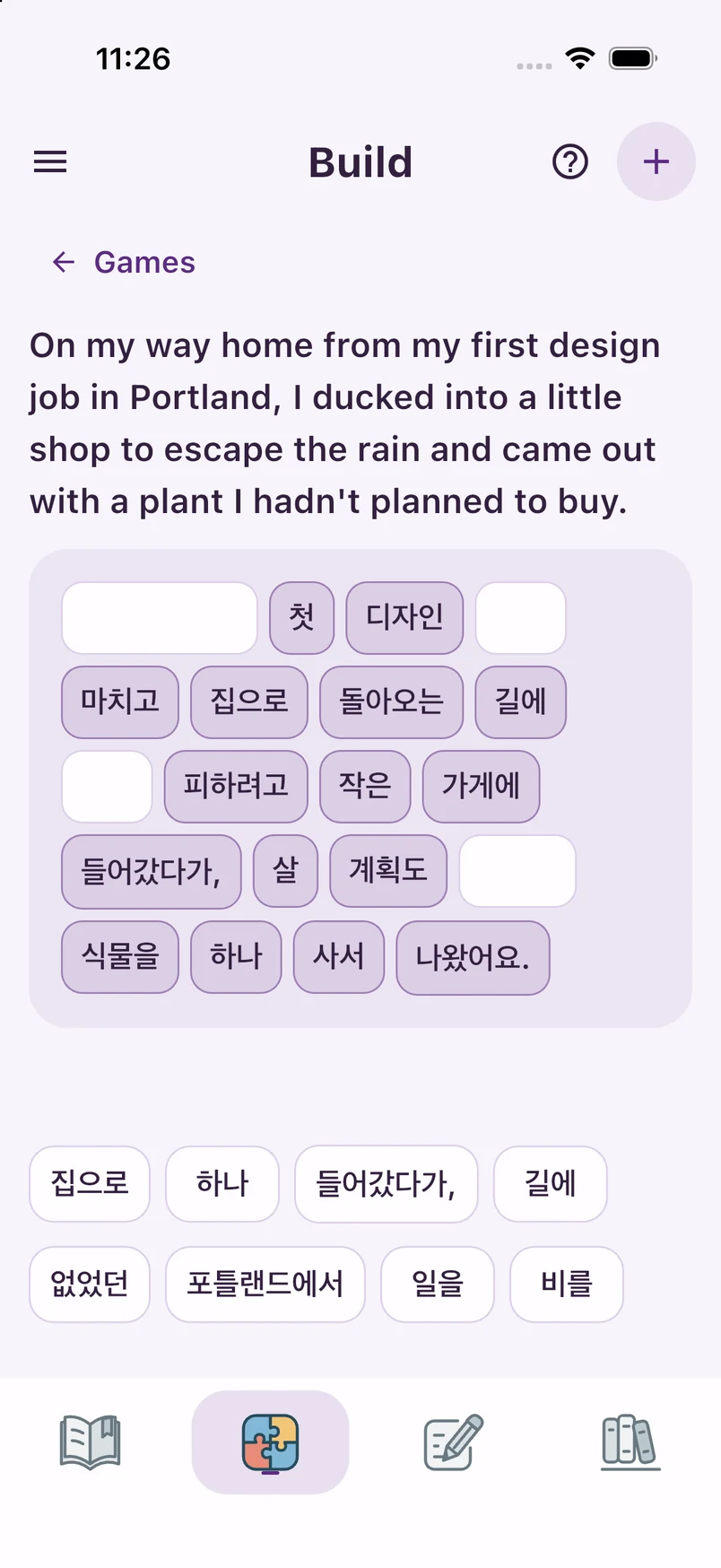
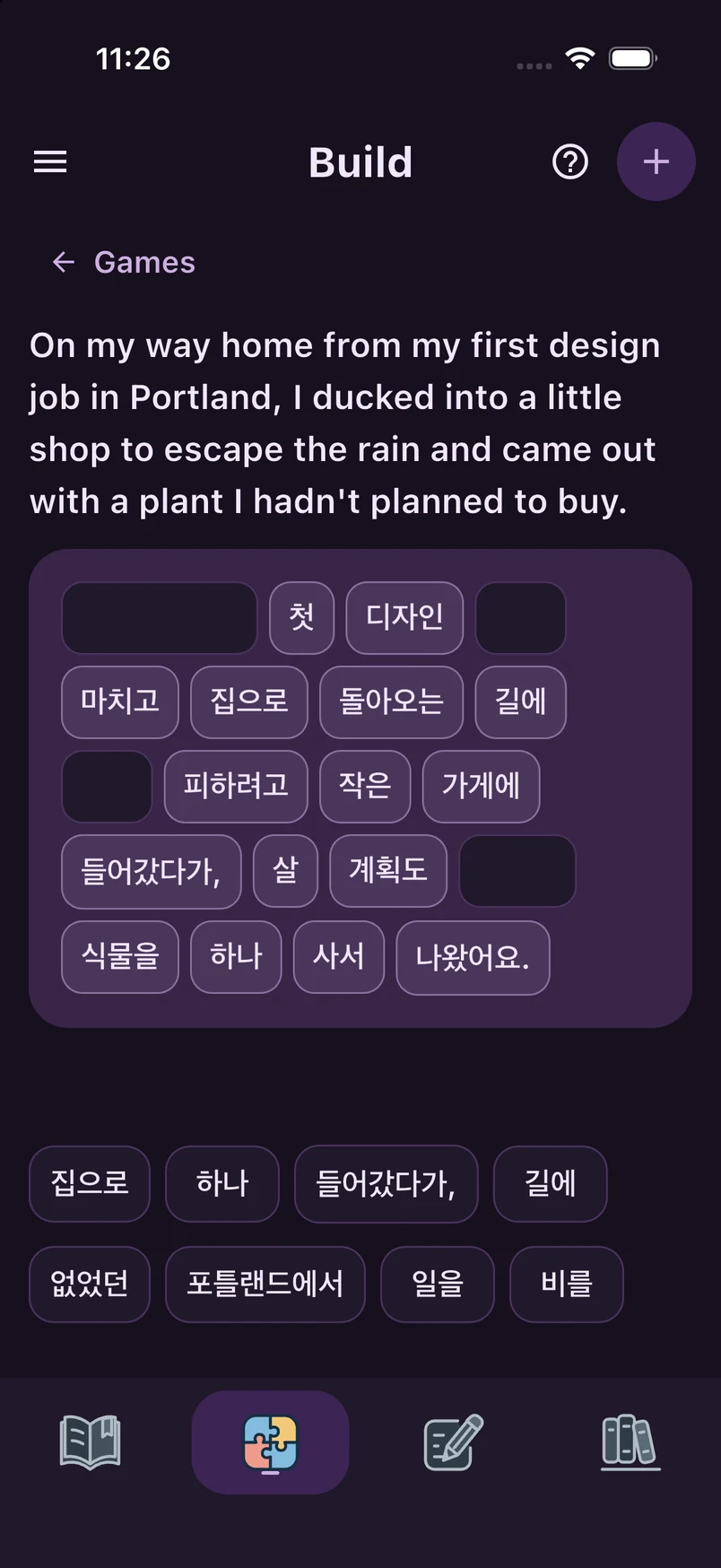
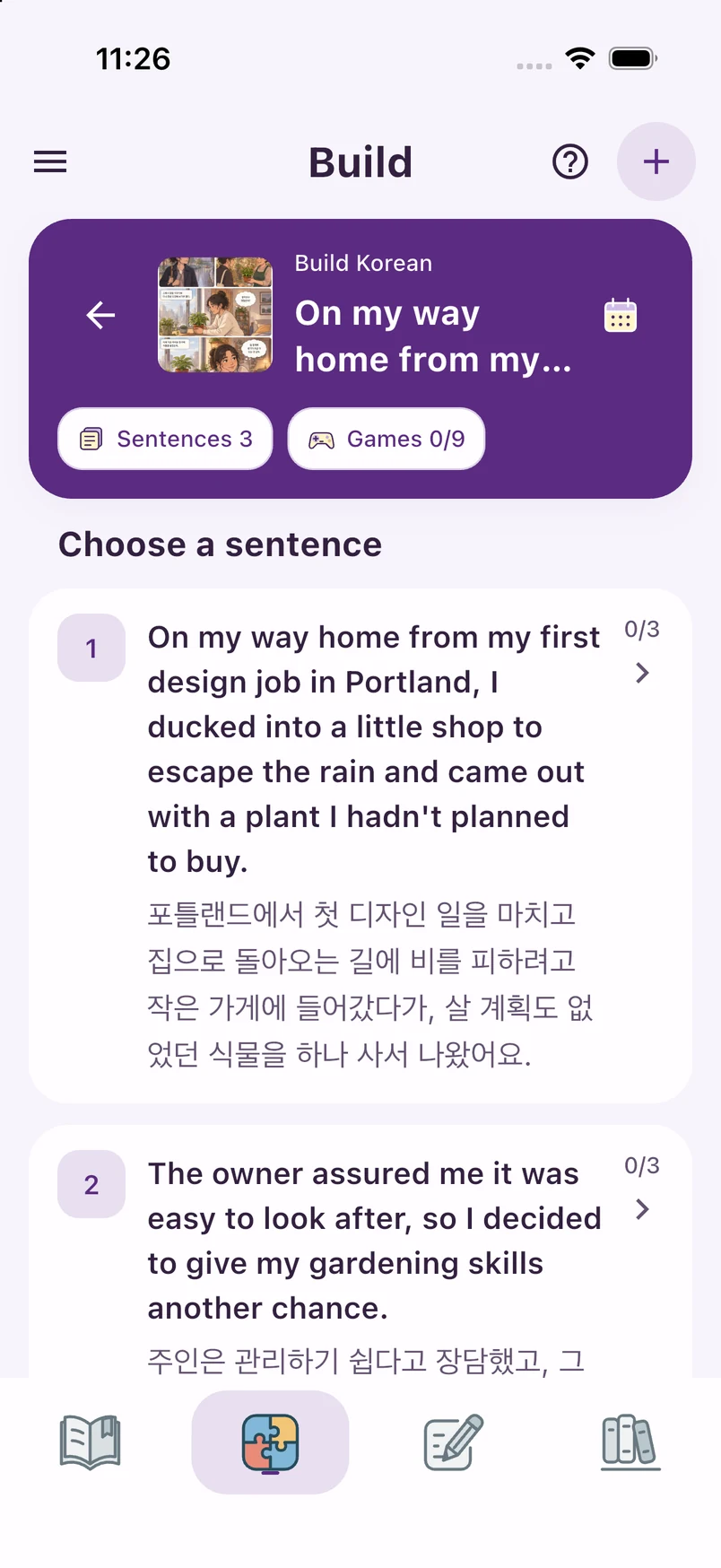
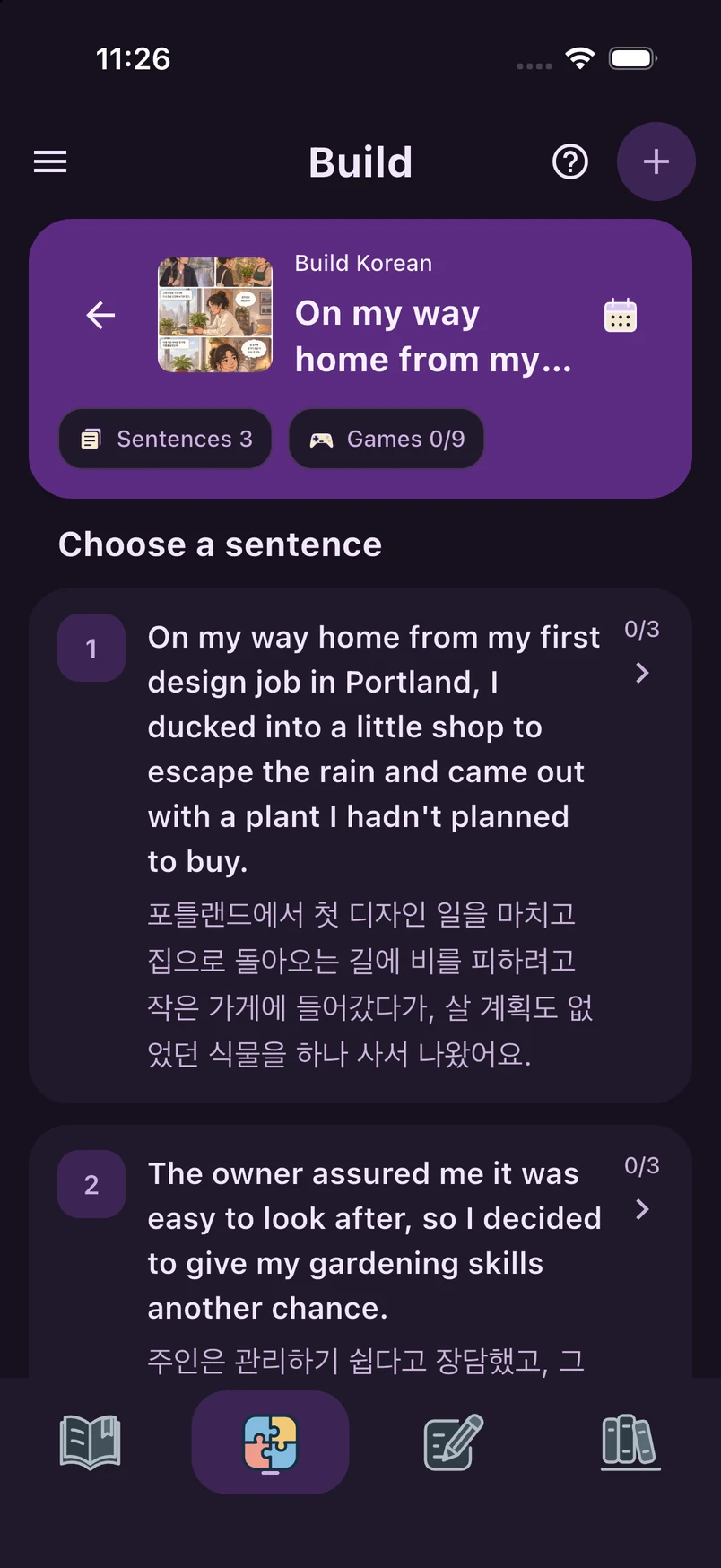
Open Build and choose a date, then a diary. Diary history is also available in Haru and Library → Calendar.
Open one of the available exercise types. Rebuild the Korean using the words or blanks on screen.
Check your answer, use the available hint if needed, and try again. Your practice stays connected to the diary.
In the app
Open Build and choose a date, then a diary. Diary history is also available in Haru and Library → Calendar.
The app includes guides you can replay from the question-mark button.
03 · Practice
Try a Korean sentence of your own.
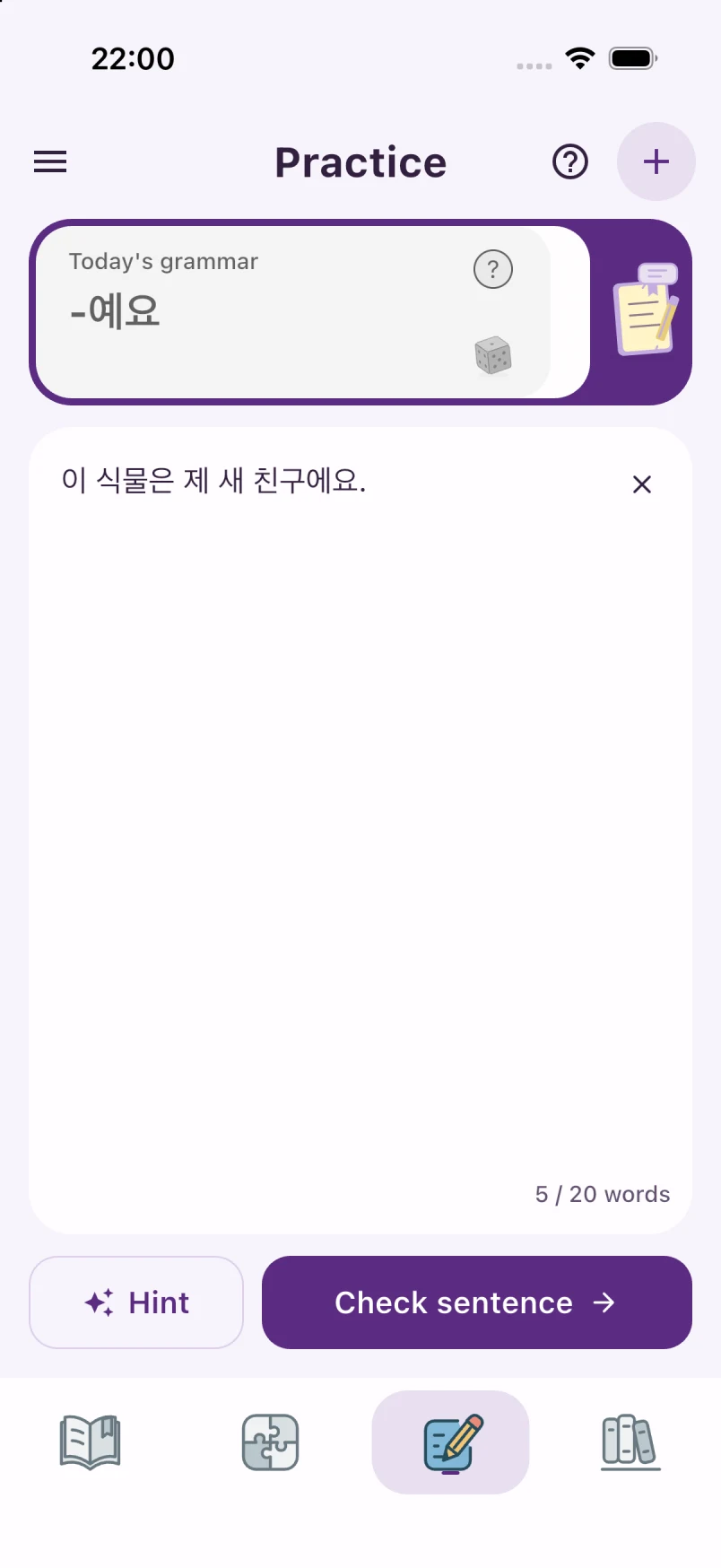
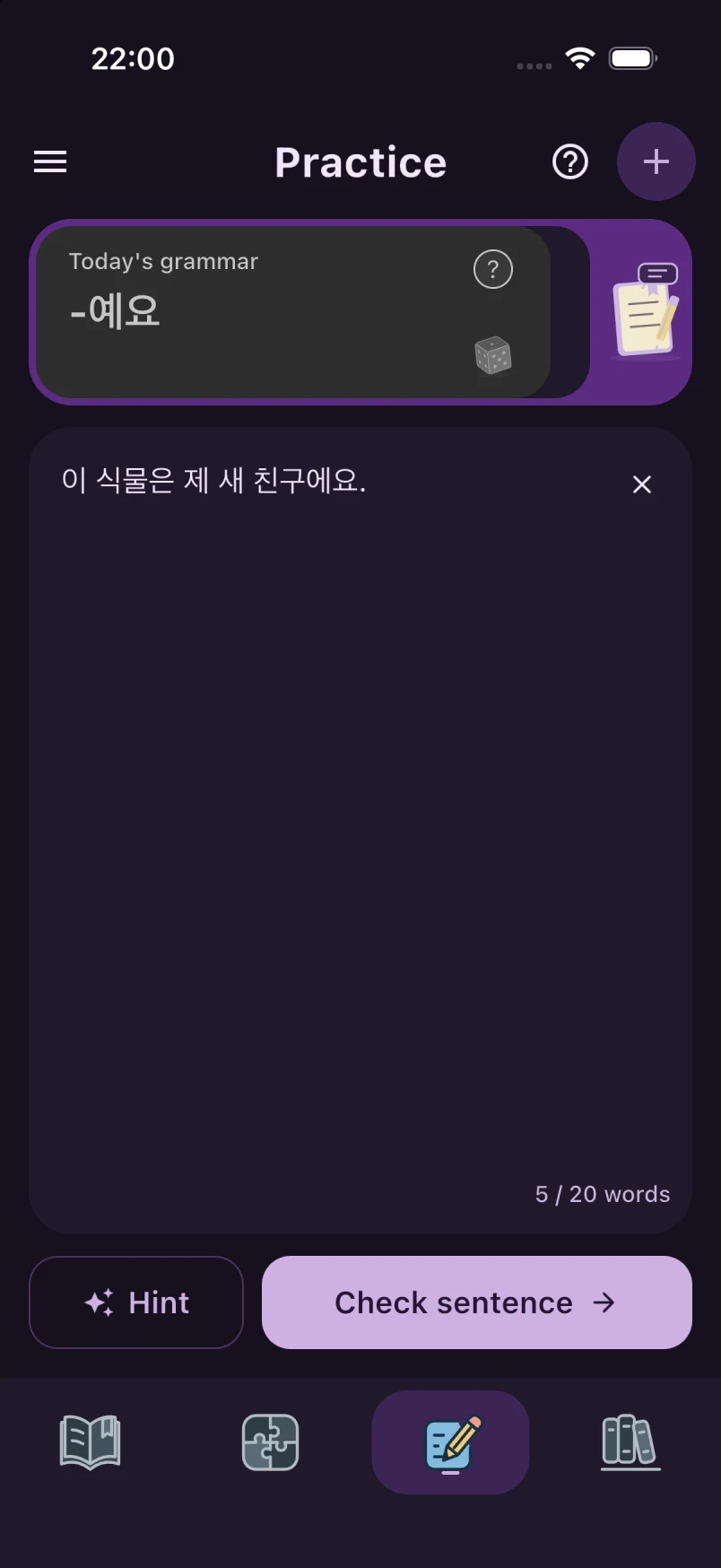
Use Today’s grammar, tap its question mark for help, or roll the dice for another grammar pattern.
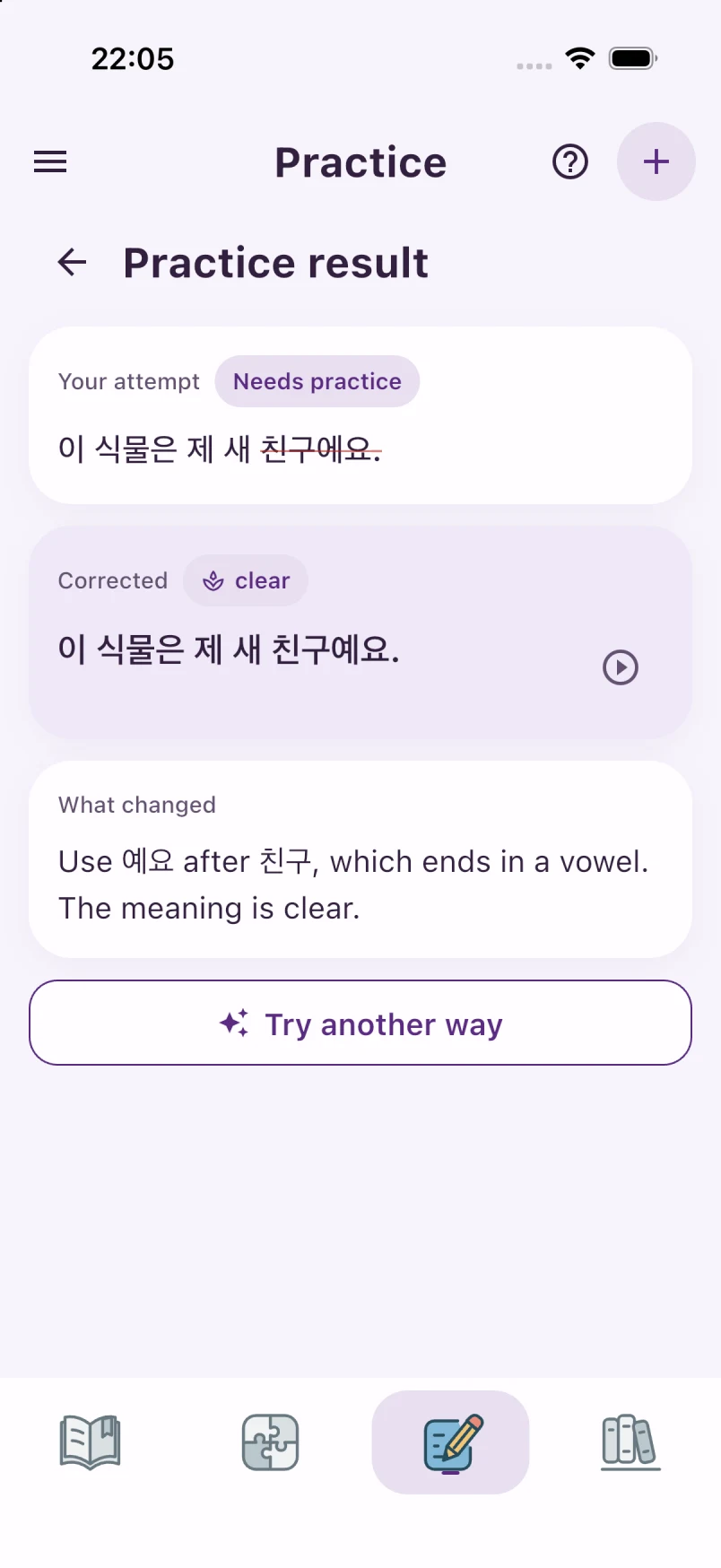
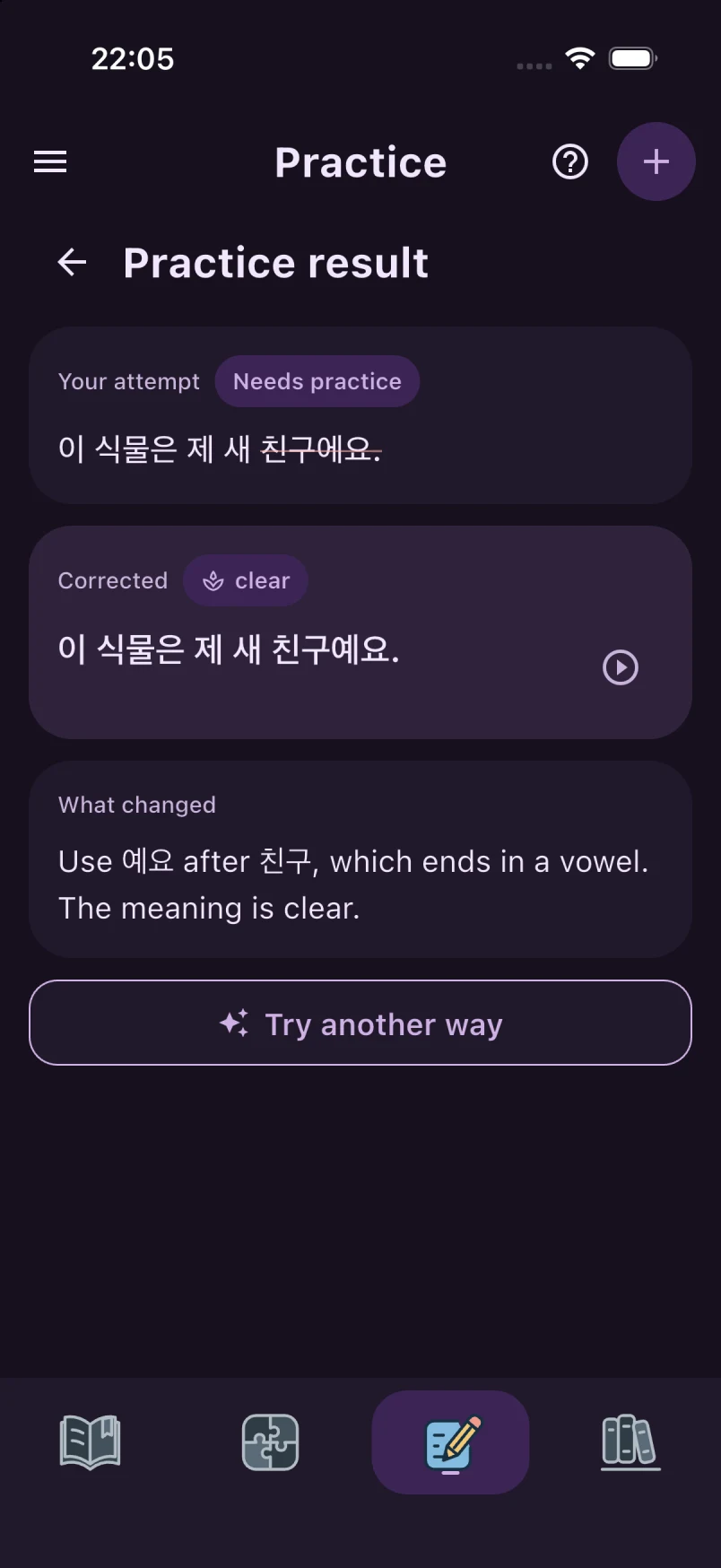
Write a Korean sentence and tap Check sentence. You can practise a grammar pattern or a sentence from your day.
Review the result and try another sentence. Your past practice records are available in Haru and Library → Calendar.
In the app
Review the result and try another sentence. Your past practice records are available in Haru and Library → Calendar.
The app includes guides you can replay from the question-mark button.
04 · Library
Save useful Korean. Find the day it came from.
Tap the bookmark icon on a grammar, vocabulary, or phrase card in your Story.
Open Library → Grammar, Vocab, or Phrases to revisit the items you saved.
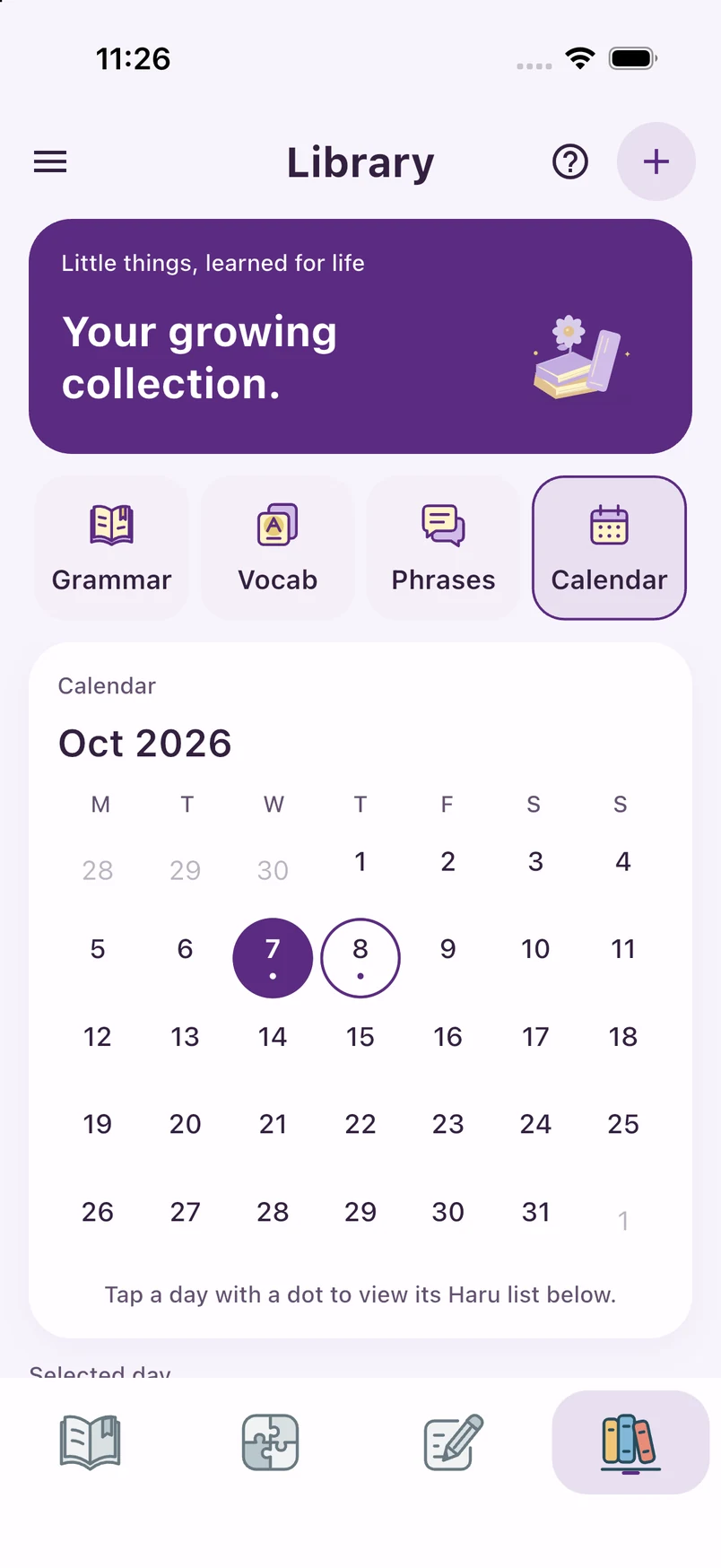
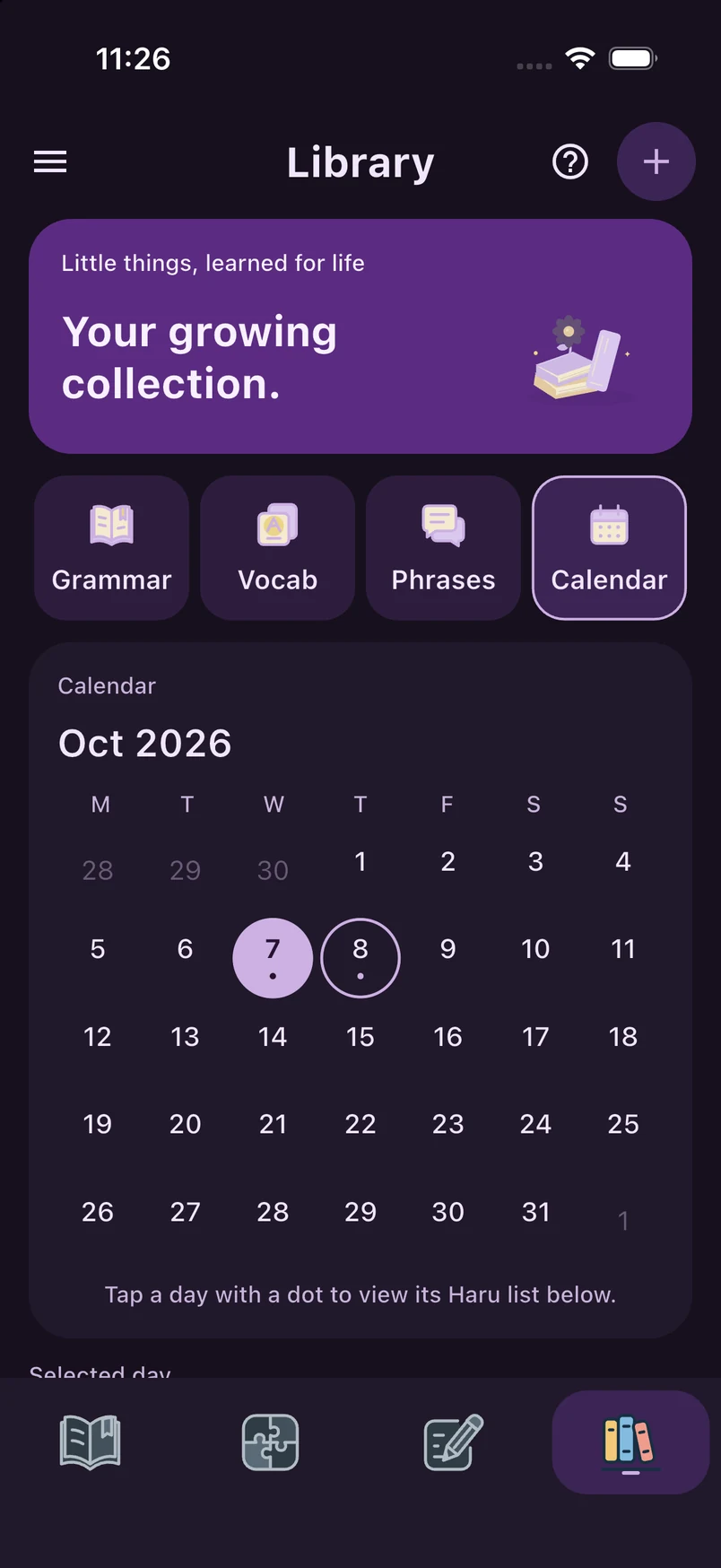
Open Library → Calendar, choose a day with a dot, then open a diary or practice record below the calendar.
In the app
Open Library → Calendar, choose a day with a dot, then open a diary or practice record below the calendar.
The app includes guides you can replay from the question-mark button.
05 · Voice
A familiar sound, when you want it.
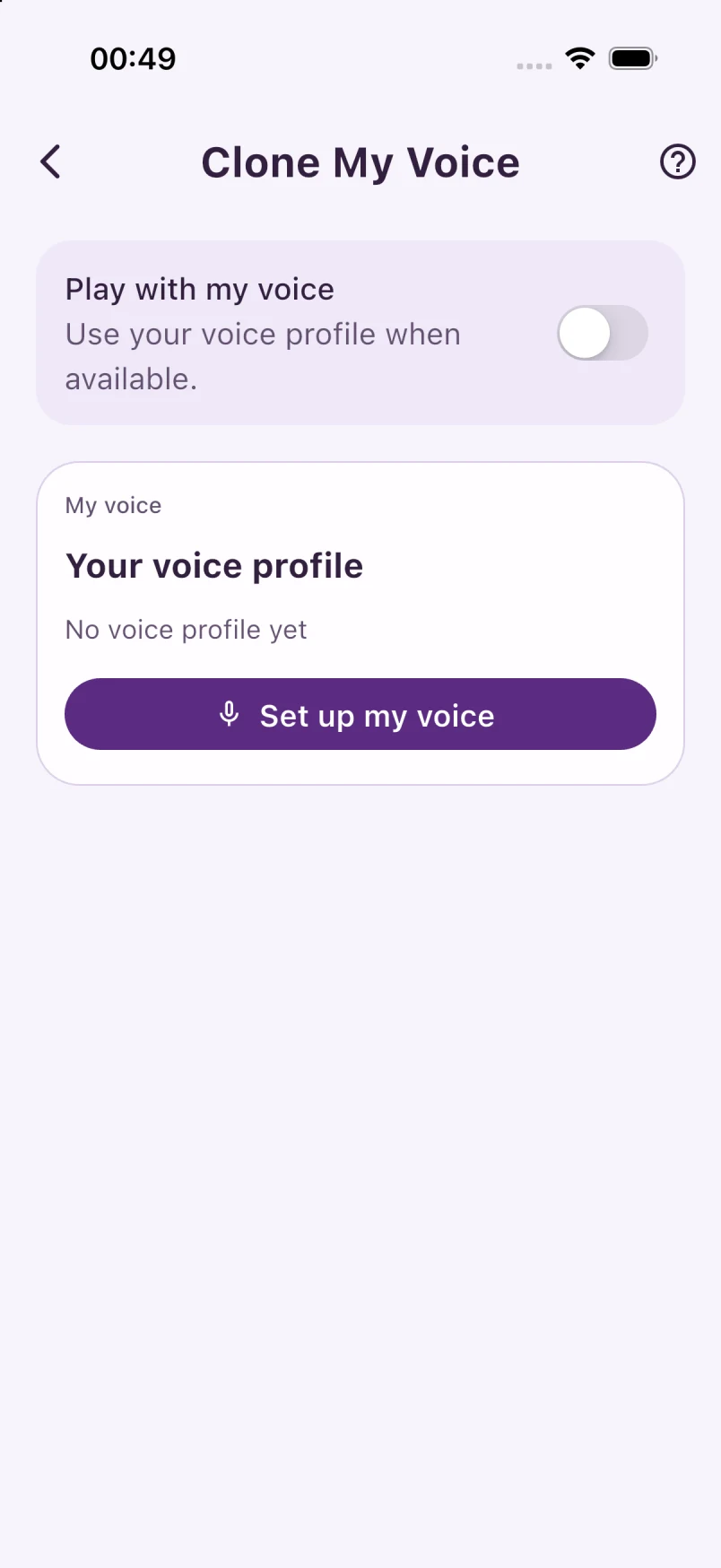
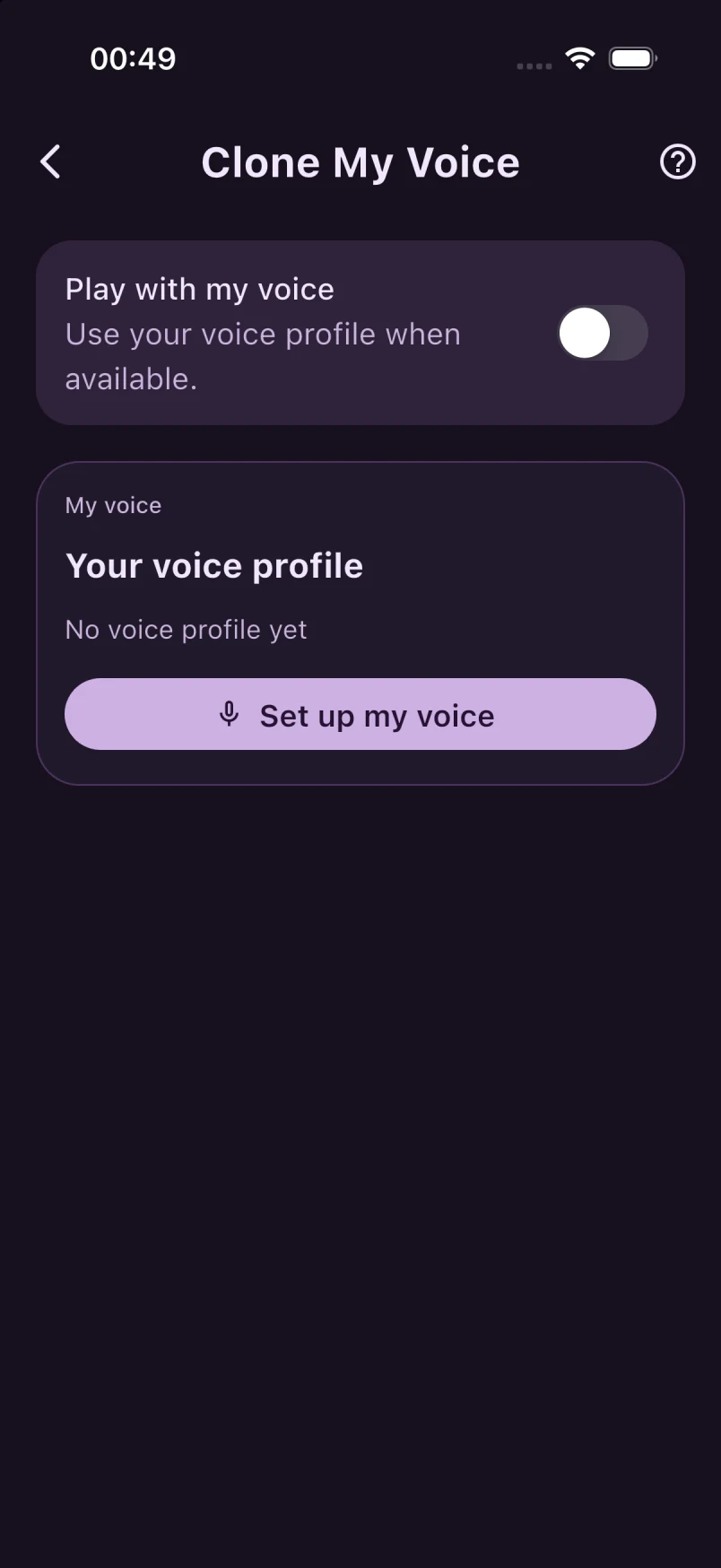
Open Menu → Clone My Voice, tap Set up my voice, and follow the recording steps. Use your own voice, or one you have permission to clone.
When your voice profile is ready, Play with my voice can use it for your Korean Story. A cloned voice is optional; you can keep the standard voice.
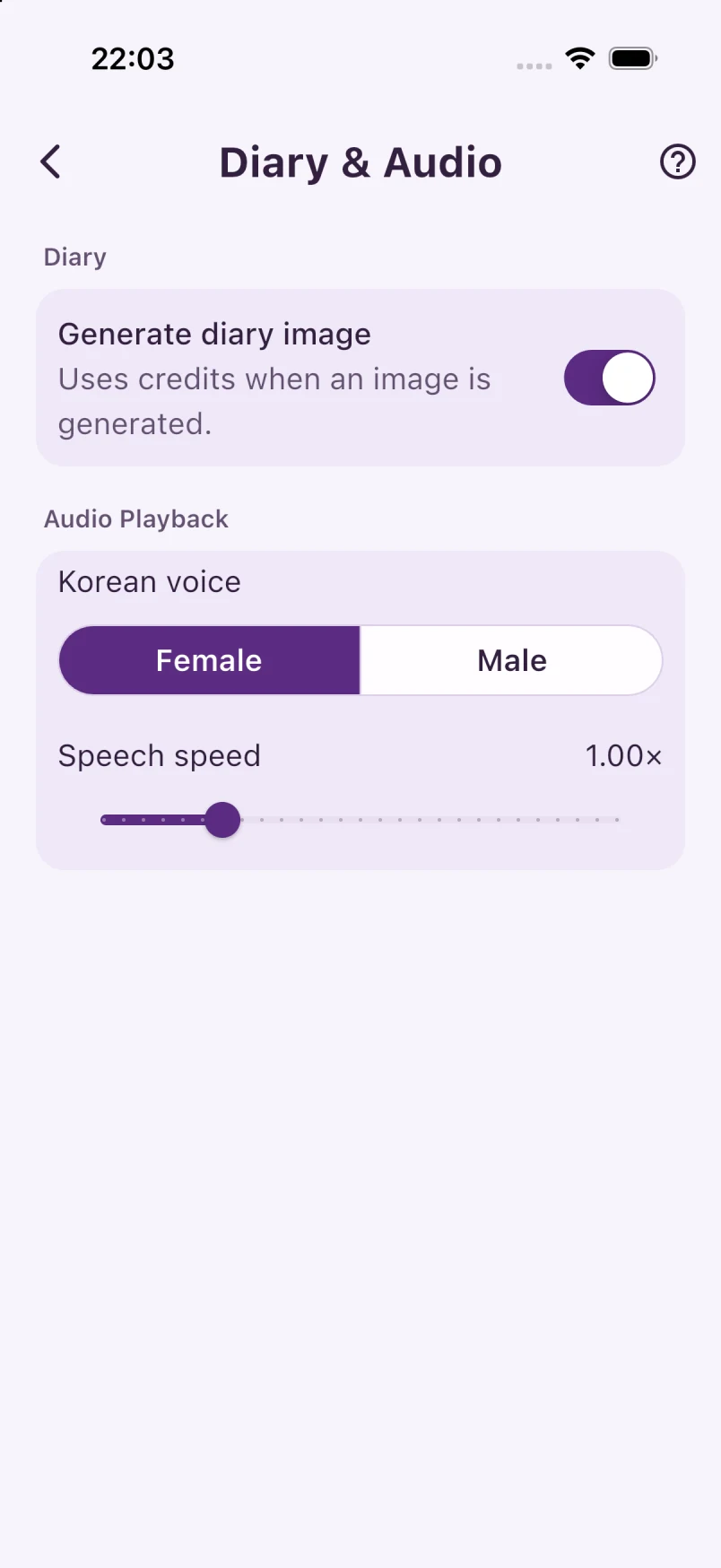
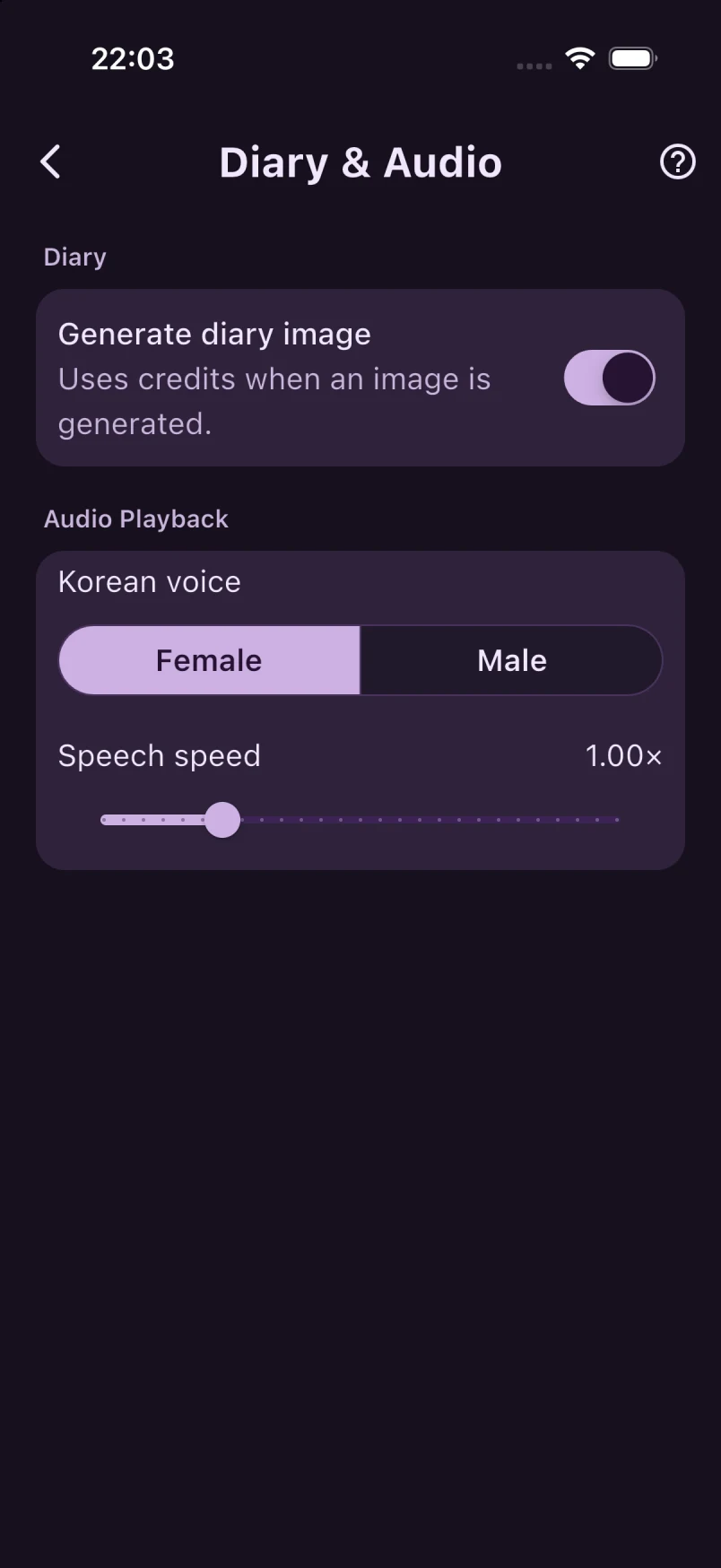
Open Settings → Diary & Audio to choose playback speed and the standard voice. Tap the play icon beside a sentence to listen again.
In the app
Open Settings → Diary & Audio to choose playback speed and the standard voice. Tap the play icon beside a sentence to listen again.
The app includes guides you can replay from the question-mark button.
06 · Appearance · Optional
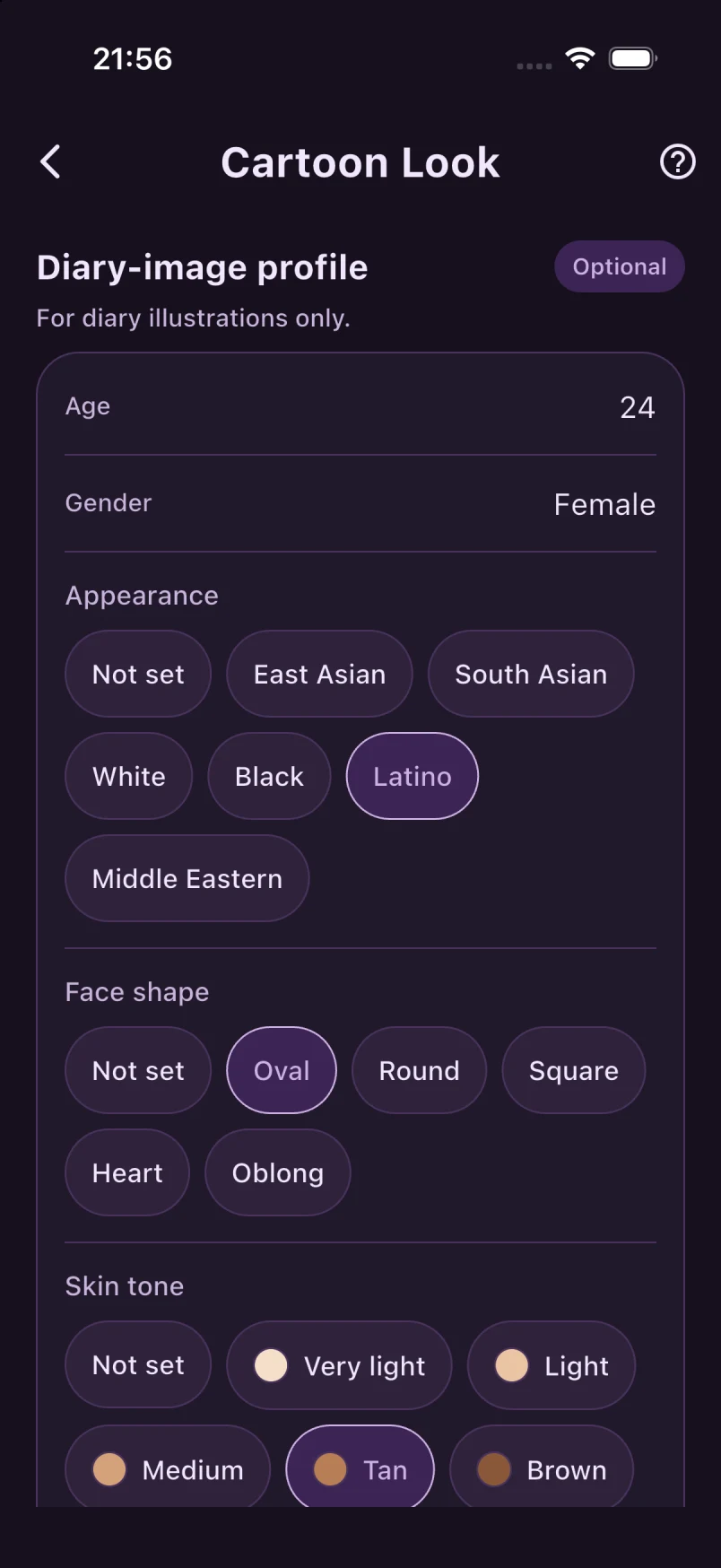
Open Menu → Cartoon Look. Age, appearance, face shape and skin tone are optional visual references for diary illustrations; they do not need to identify you. Face shape and skin tone are separate choices. To generate cartoons, enable Generate diary image in Settings → Diary & Audio. Image generation uses credits.
The app includes guides you can replay from the question-mark button.